
Why PC gaming on a TV is worth doing
Modern PC hardware is perfectly capable of driving a living-room setup. You get access to your PC game library, graphics settings, mods, peripherals and the wider Windows ecosystem, while enjoying a large screen and a normal controller.
The awkward part usually happens between pressing the power button and actually getting into a game. Windows sign-in, multiple launchers, pop-ups, small text and occasional desktop prompts can make the setup feel less polished than a console.
That is why a good couch-gaming setup is as much about workflow as performance.
The basics of a good living-room gaming PC
Start with the simple things. Connect the PC to the TV with the appropriate HDMI connection for the resolution and refresh rate you want. Make sure Windows is using the TV's native resolution and configure HDR or variable refresh rate only if your display and GPU support them reliably.
Then pair the controller you actually want to use. Xbox-style controllers generally work straightforwardly with Windows, while PlayStation-style controllers are also widely usable, although individual games can vary in how they display button prompts.
Finally, make audio predictable. A living-room setup feels much better when Windows consistently sends sound to the television, soundbar or AV receiver you expect.
The bit most guides forget: getting around Windows
A gamepad is ideal once a game is running, but the Windows desktop is still pointer-first. That creates the classic couch-gaming problem: everything is fine until a launcher asks for a password, an update window appears or you need to change a setting.
You can solve that with a wireless keyboard and mouse, a small touchpad keyboard, controller-to-mouse software or a full-screen launcher. The right choice depends on how much of the desktop you want to see.
For a dedicated TV PC, a controller-first home screen is the cleanest option because it reduces how often you need to interact with the desktop in the first place.
Where Frame UI fits into a TV gaming setup
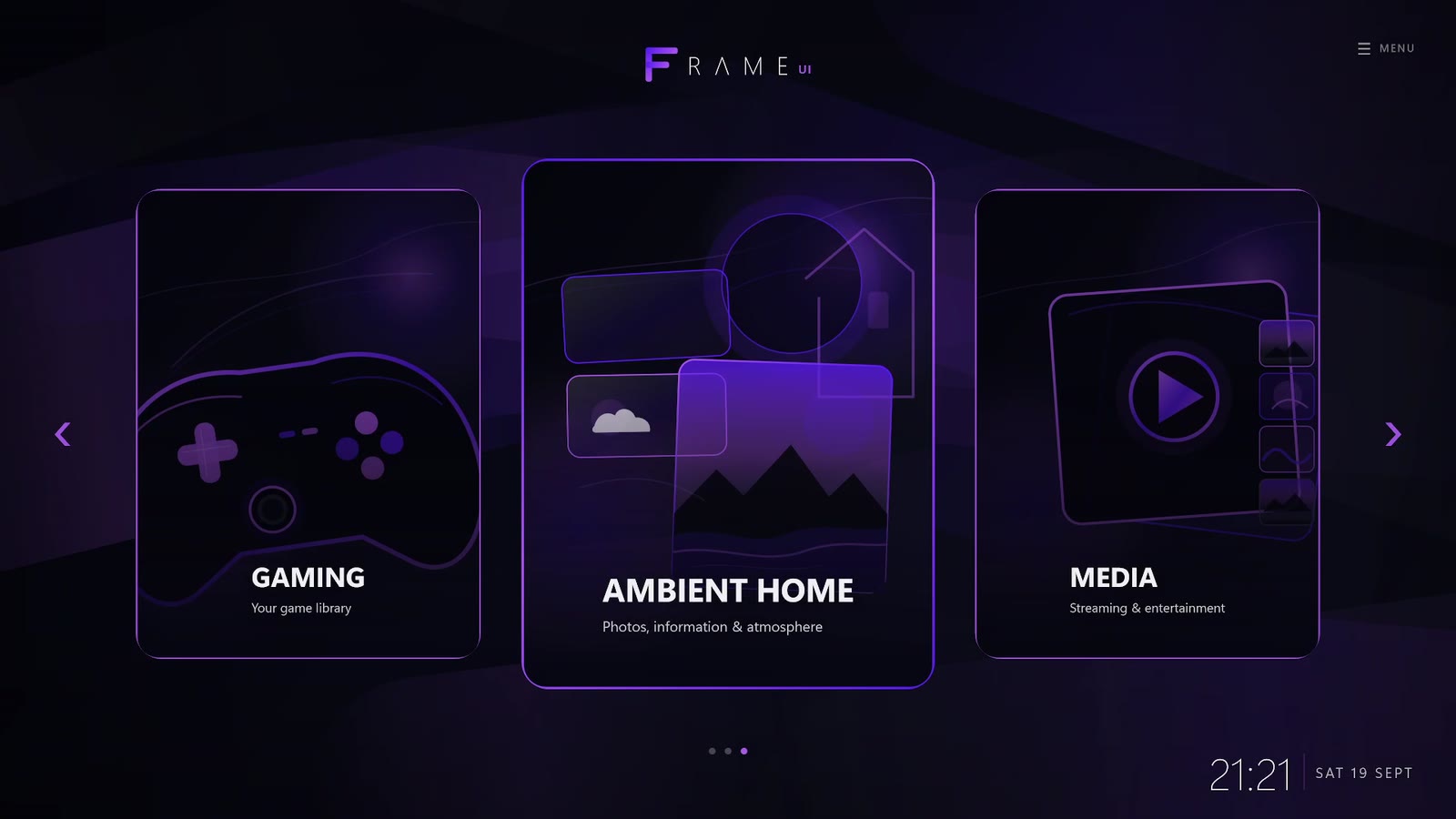
Frame UI is designed to sit between Windows and the sofa. After Windows is ready, Frame can open into a full-screen home experience where your game library sits alongside streaming, music, photos and other living-room features.
That means the PC still behaves like a normal Windows machine when you need it to, but the default experience is focused on the television. The goal is not to hide the fact that you own a PC. It is to stop making you operate it like a desk PC every time you want to relax.
Small changes that make a big difference
- Set Windows scaling so text is comfortable from your normal seating distance.
- Use a controller connection method that is reliable in your room rather than chasing theoretical lowest latency.
- Keep startup apps under control so random windows do not steal focus.
- Choose a predictable audio output and test wake/sleep behaviour before relying on it.
- Keep a compact keyboard nearby for the rare jobs that are genuinely easier with one.
A good living-room PC does not need to pretend the keyboard and mouse do not exist. It just needs to make them optional most of the time.